Beginner-Friendly Step-by-Step Guide with Screenshots
1. Introduction
If you're learning Python, you've probably seen tutorials where code is written inside a browser with separate code cells and instant outputs appearing below each cell. That environment is called Jupyter Notebook, and it is one of the most beginner-friendly tools available for learning Python.
Unlike traditional code editors, Jupyter Notebook allows you to write small pieces of code, run them instantly, and see the results immediately. You can also add notes, explanations, formulas, images, and charts in the same notebook. This makes learning much easier because you can experiment with ideas without worrying about setting up complex projects.
Many beginners start their Python journey with Jupyter Notebook because it feels simple and interactive. At the same time, professional developers, data scientists, AI engineers, researchers, and universities around the world use it every day for real-world work.
In this step-by-step guide, you'll learn how to install Jupyter Notebook on Windows, verify the installation, launch your first notebook, and run your first Python program with confidence.
2. What is Jupyter Notebook and How Does It Work?
Jupyter Notebook is an interactive web-based application that allows you to write and execute Python code directly in your browser.
You can use it to:
- Write Python code
- Run code one cell at a time
- Display output instantly
- Create charts and graphs
- Add notes using Markdown
- Document your learning process
For beginners, one of the biggest advantages of Jupyter Notebook is that you don't need to run an entire Python file every time you make a small change. You can simply execute a single cell and immediately see the result.
This interactive style makes learning Python faster and less intimidating.
3. Why Should Beginners Learn Jupyter Notebook?
Many beginners start learning Python using traditional code editors and quickly realize that setting up projects, creating files, and running programs repeatedly can sometimes feel overwhelming. Jupyter Notebook offers a much simpler learning experience by allowing you to write small pieces of code, run them instantly, and see the results immediately.
One of the biggest advantages of Jupyter Notebook for beginners is that it encourages experimentation. You can test ideas, make changes, and rerun code without worrying about affecting an entire project. This hands-on approach helps freshers understand Python concepts more confidently and learn through practice.
Jupyter Notebook is also widely used in areas such as Python programming, Data Science, Machine Learning, Artificial Intelligence, and data analysis. Learning this tool early gives beginners practical experience with an environment that is used not only for education but also in real-world projects and professional workflows.
If your goal is to build strong Python skills and gradually explore advanced fields like AI or Machine Learning, Jupyter Notebook is one of the easiest and most beginner-friendly tools to start your learning journey.
4. Prerequisites Before Installing Jupyter Notebook
Before installing Jupyter Notebook on Windows, you need to make sure that Python is already installed on your computer. Jupyter Notebook runs on Python, so having a working Python installation is the first and most important requirement.
You can quickly verify your Python installation by opening Command Prompt and running the following command:
python --version
If Python is installed correctly, you will see an output similar to:
Python 3.14.5
If Python is not installed or is not recognized by your system, don't worry. Follow our How to Install Python on Windows guide with screenshots and then return here to continue installing Jupyter Notebook. A proper Python installation ensures that Jupyter Notebook and other Python packages work smoothly on your system.
The next step is to verify pip, which is Python's built-in package manager. pip is responsible for downloading and installing Jupyter Notebook along with the required dependencies.
Run:
pip --version
Example output:
pip 25.x
If you can see the pip version successfully, your computer is ready for Jupyter Notebook installation. With Python and pip properly configured, the remaining setup process becomes straightforward and usually takes only a few minutes.
5. Step 1: Open Command Prompt
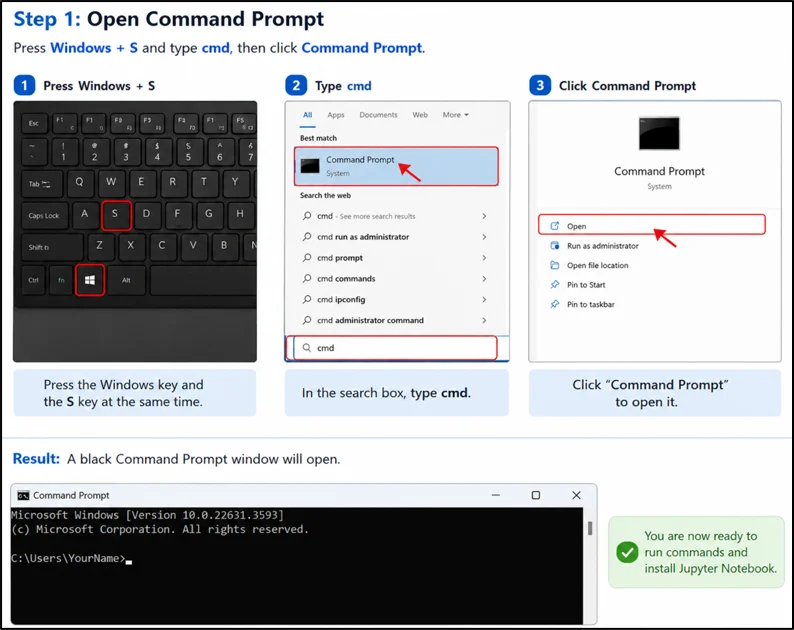
The first step in installing Jupyter Notebook is to open the Windows Command Prompt. This is a built-in terminal application that allows you to run Python and install packages using pip.
Press Windows + S on your keyboard and type:
cmd
From the search results, click Command Prompt. A black terminal window will appear on your screen. Don't worry if you've never used it before. In this guide, you'll only need to run a few simple commands to install Jupyter Notebook successfully.
6. Step 2: Install Jupyter Notebook
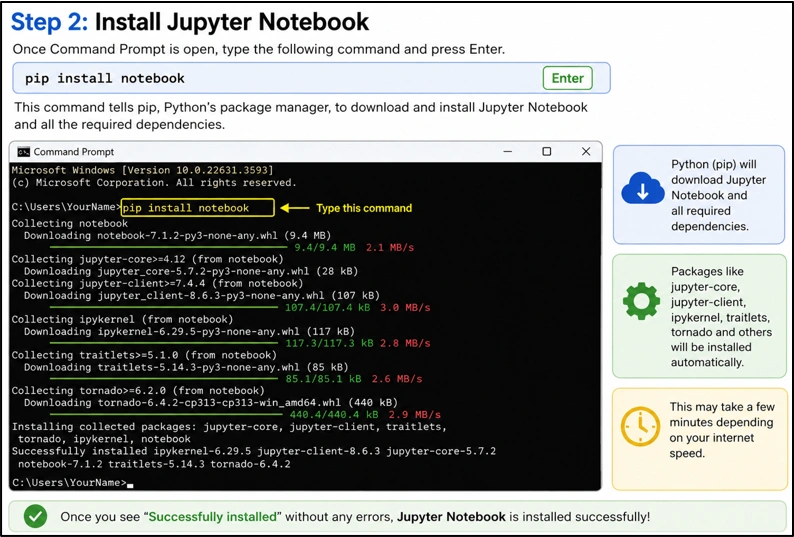
Once Command Prompt is open, type the following command and press Enter:
pip install notebook
This command tells pip, Python's package manager, to download and install Jupyter Notebook on your Windows computer.
During the installation process, Python automatically downloads several required packages, such as jupyter-core, jupyter-client, ipykernel, and other supporting libraries.
These packages work together to create a fully functional Jupyter Notebook environment.
Depending on your internet speed, the installation may take a few minutes. Once the process finishes without any errors, Jupyter Notebook is successfully installed and ready to use.
7. Step 3: Verify Jupyter Installation
After the installation is complete, it is a good idea to verify that Jupyter Notebook has been installed correctly.
In the same Command Prompt window, type:
jupyter --version
You may see an output similar to:
IPython: 9.x
jupyter_client: 8.x
jupyter_core: 5.x
notebook: 7.x
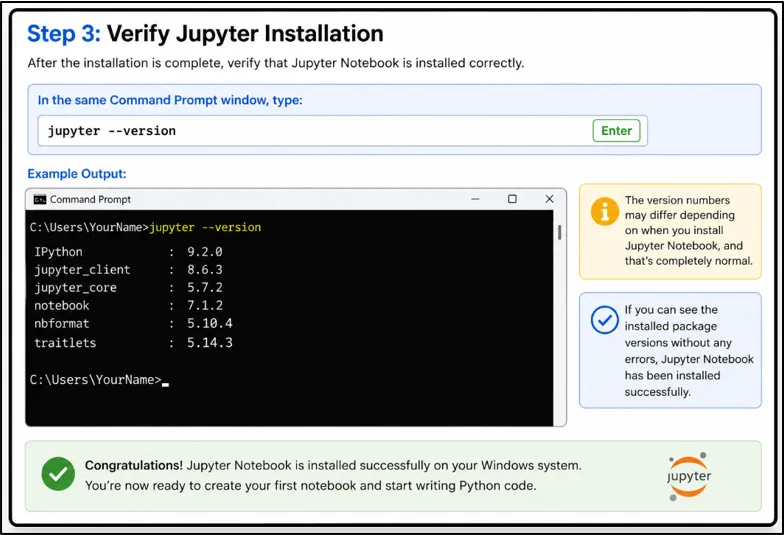
The version numbers may differ depending on when you install Jupyter Notebook, and that's completely normal.
If you can see the installed package versions without any errors, congratulations. Jupyter Notebook has been installed successfully on your Windows system, and you're now ready to create your first notebook and start writing Python code.
8. Step 4: Launch Jupyter Notebook
Now comes the most exciting part of the installation process. After installing and verifying Jupyter Notebook, you are ready to launch it and start writing Python code in an interactive environment.
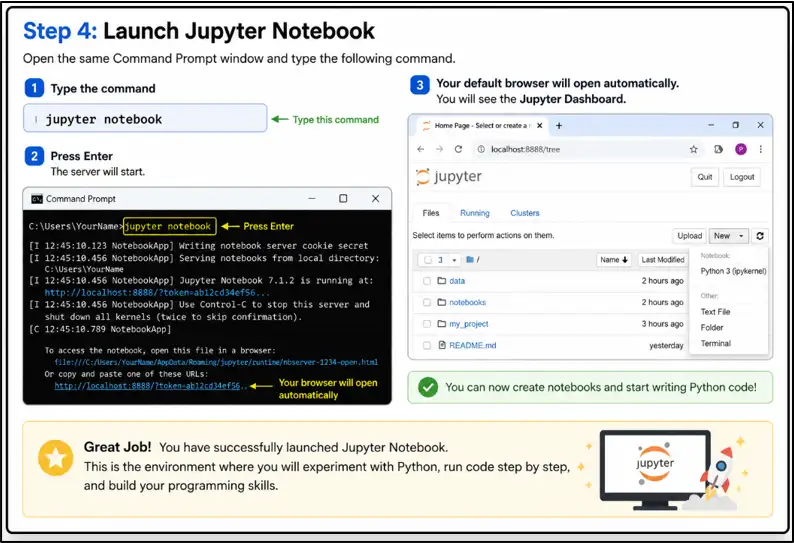
Open the same Command Prompt window and type:
jupyter notebook
Press Enter.
After a few seconds, Jupyter Notebook will start automatically and your default web browser will open. You will see the Jupyter Dashboard, which is the main workspace where you'll create notebooks, organize files, and practice Python.
For many beginners, this is an important milestone because it is often the first environment where they start experimenting with Python, running code step by step, and building confidence through hands-on practice.
9. Understanding the Jupyter Dashboard
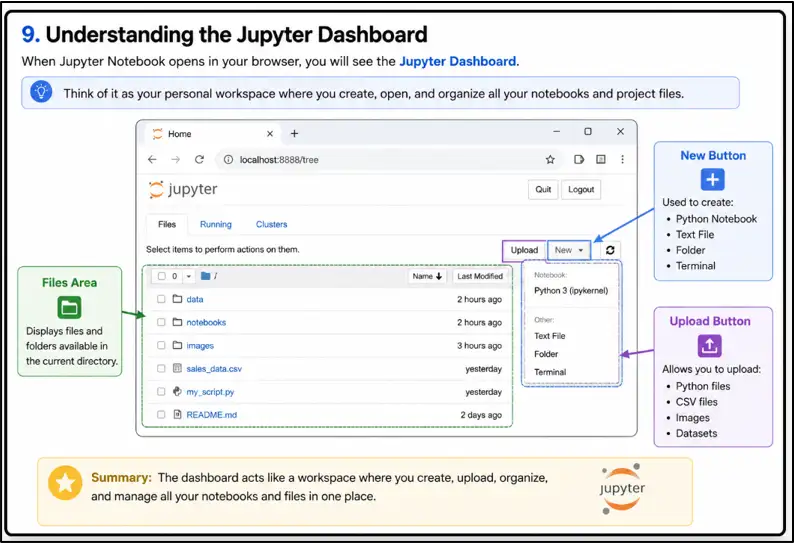
When Jupyter Notebook opens in your browser, the first screen you see is called the Jupyter Dashboard. Think of it as your personal workspace where you create, open, and organize all your notebooks and project files.
The Files Area displays the files and folders available in your current working directory. As you create notebooks or upload datasets, they will appear here, making it easy to manage your work.
At the top-right corner, you'll find the New button. This option allows you to create a new Python Notebook where you can write and execute Python code. You can also create text files, folders, or even open a terminal directly from the dashboard.
Another useful option is the Upload button. It allows you to upload Python files, CSV files, images, datasets, and other resources that you may need while learning Python, working on assignments, or practicing data analysis.
As you continue your Python journey, you'll spend a lot of time inside this dashboard. Fortunately, its simple layout makes it easy for beginners to navigate and focus on learning rather than worrying about complicated tools or settings.
10. Create Your First Jupyter Notebook
Now it's time to create your first Jupyter Notebook and run your first Python program. For many beginners, this is the moment when Python starts feeling practical and exciting.
From the Jupyter Dashboard:
- Click New → Python 3
- A new notebook will open in your browser.
- You will see:
In [ ]
This is called a code cell, where you write and execute Python code.
Type:
print("Hello World")
Press Shift + Enter.
Output:
Hello World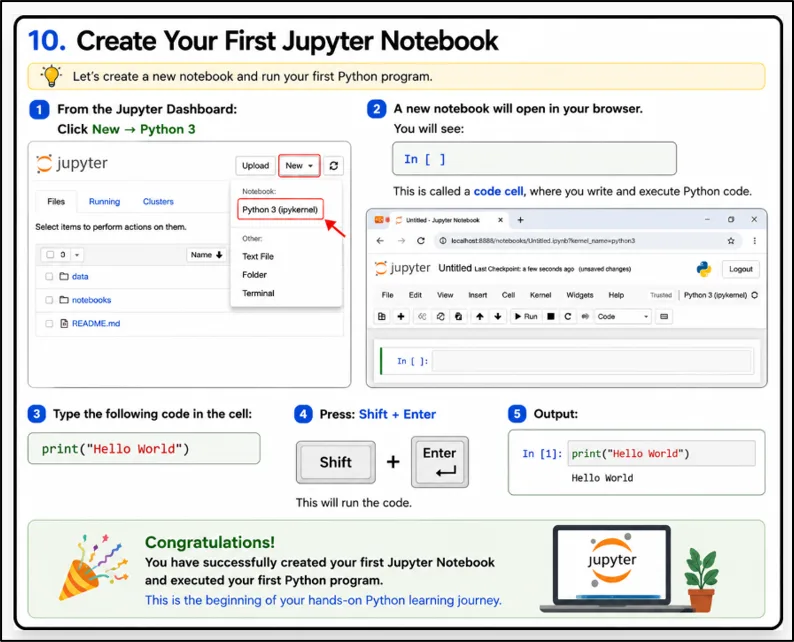
11. Why Developers Love Jupyter Notebook
Jupyter Notebook is popular because it combines code, explanations, and output in a single workspace. This makes it easier to learn new concepts, test ideas quickly, and keep your work organized without switching between multiple applications.
For beginners, one of the biggest advantages of Jupyter Notebook is its interactive environment. You can write a small piece of code, execute it immediately, and understand the output step by step. This hands-on approach makes learning Python more engaging and less overwhelming.
Developers and learners use Jupyter Notebook for many purposes, including:
- Learning Python – Practice Python concepts and experiment with code in an interactive environment.
- Data Analysis – Analyze and visualize datasets using libraries such as Pandas and NumPy.
- Machine Learning – Build and test machine learning models using Scikit-learn and TensorFlow.
- Artificial Intelligence – Explore Generative AI, Large Language Models (LLMs), Prompt Engineering, and AI Agents. As your projects grow, learn Python Virtual Environments to manage packages and dependencies professionally.
- Research and Experimentation – Combine code, text explanations, equations, charts, and visualizations inside a single notebook.
Because of this flexibility, Jupyter Notebook is used not only by students and beginners but also by data scientists, AI engineers, researchers, and software professionals worldwide.
While experimenting in Jupyter Notebook, you will occasionally encounter errors such as syntax errors, value errors, or import errors. Understanding
Python Exception Handling will help you identify these errors quickly, debug your code more effectively, and write more reliable Python programs.
12. Jupyter Notebook vs VS Code
Many beginners are unsure whether they should start with Jupyter Notebook or VS Code. The truth is that both are excellent tools, but they are designed for different purposes.
Jupyter Notebook is ideal for learning, experimentation, and working with data. It allows you to execute code one cell at a time, making it easier to understand Python concepts and observe results instantly.
VS Code is a full-featured code editor used for building larger applications. It provides advanced features such as debugging, extensions, Git integration, and project management tools that are useful in professional software development.
|
Jupyter Notebook
|
VS Code
|
|
Interactive
coding environment
|
Full-featured
IDE and editor
|
|
Great for
beginners
|
Great for
larger projects
|
|
Instant code
execution
|
Advanced
debugging tools
|
|
Excellent for
Python learning
|
Excellent for
software development
|
|
Widely used in
AI and Data Science
|
Widely used in
backend and web development
|
For Beginners
A simple learning path is:
- Start with Jupyter Notebook to learn Python and practice concepts.
- Use it for Data Science, Machine Learning, and AI experiments.
- Gradually move to VS Code as you start building larger Python projects.
- Eventually, use both tools together depending on your project requirements.
This approach is followed by many Python developers because it combines beginner-friendly learning with professional development practices.
13. Common Jupyter Installation Errors and Solutions
Even though installing Jupyter Notebook is usually straightforward, beginners may occasionally face a few setup issues. The good news is that most of these problems are easy to fix with a few simple steps.
I. jupyter is not recognized
You may see an error like:
'jupyter' is not recognized as an internal or external command
This usually happens when:
● Jupyter Notebook was not installed properly.
● The system PATH was not updated.
● Command Prompt was not restarted after installation.
Solution
Close the current Command Prompt window and open a new one. Then run:
jupyter --version
If the problem continues, reinstall Jupyter Notebook using pip.
II. pip is not recognized
Another common error is:
'pip' is not recognized as an internal or external command
This means Python or pip is not configured correctly on your computer.
First, verify Python:
python --version
If Python works but pip does not, run:
python -m ensurepip --upgrade
This command installs or upgrades pip automatically.
III. Python was not found
You may encounter:
Python was not found
This usually happens because:
● Python is not installed.
● Python was installed without adding it to PATH.
Solution
Reinstall Python and make sure to select:
Add Python to PATH
during the installation process.
IV. Jupyter Notebook Opens But Browser Does Not Launch
Sometimes Jupyter Notebook starts successfully, but your browser does not open automatically.
Run:
jupyter notebook
You will see a local URL in Command Prompt.
Simply copy the URL and paste it into your browser manually. Jupyter Notebook should open normally.
V. Notebook Opens But Kernel Does Not Start
In some cases, the notebook opens but the code cells keep showing Busy or fail to execute.
Try these simple fixes:
- Restart Jupyter Notebook.
- Close and reopen your browser.
- Restart your computer.
- Launch Jupyter Notebook again.
jupyter notebook
Most beginner problems are solved using these steps.
14. Frequently Asked Questions (FAQ)
I. Is Jupyter Notebook Free?
Yes. Jupyter Notebook is completely free and open source. You can install and use it for learning Python, Data Science, Machine Learning, and AI projects without paying any license fees.
II. Is Jupyter Notebook Good for Beginners?
Absolutely.
Jupyter Notebook is one of the best Python tools for beginners because it allows you to execute code step by step and see the output instantly. This interactive approach makes learning Python easier and more enjoyable.
III. Do I Need VS Code to Use Jupyter Notebook?
No.
Jupyter Notebook works independently and does not require VS Code. Many beginners start with Jupyter Notebook and later learn VS Code as they begin building larger Python projects.
IV. Is Jupyter Notebook Used in AI and Machine Learning?
Yes.
Jupyter Notebook is widely used in:
● Machine Learning
● Deep Learning
● Generative AI
● Large Language Models (LLMs)
● AI Agents
● Natural Language Processing (NLP)
● Data Science
● Data Analysis
Because of its interactive nature, it has become one of the most popular tools for AI development and experimentation.
V. Do Companies Use Jupyter Notebook?
Yes.
Many companies use Jupyter Notebook for:
● Data Analysis
● AI Research
● Machine Learning Experiments
● Business Reporting
● Data Visualization
● Prototyping AI Models
It is commonly used by data scientists, AI engineers, researchers, and analytics teams across different industries.
VI. Is Jupyter Notebook Better Than VS Code for Beginners?
For most beginners, Jupyter Notebook is easier to start with because you can run code one cell at a time and experiment without creating full projects.
As your Python skills grow, you can gradually move to VS Code for larger applications and professional development workflows.
VII. Is Jupyter Notebook Still Worth Learning in 2026?
Yes, absolutely.
Jupyter Notebook continues to be one of the most widely used tools for Python programming, Data Science, Machine Learning, and Artificial Intelligence. Learning it today can help beginners build practical skills that are valuable for both education and professional careers.
This is one of the reasons why Jupyter Notebook remains a recommended tool for freshers, students, junior developers, and aspiring AI engineers.
15. Final Thoughts
Installing Jupyter Notebook is not just about preparing your computer for Python. It is about creating a workspace where you can practice consistently, explore new ideas, and gradually develop problem-solving skills that will stay with you throughout your programming journey.
As a beginner, don't focus on learning everything at once. Start with simple Python programs, understand how the code works, and build the habit of experimenting regularly. Small daily practice sessions often lead to bigger improvements than trying to learn many concepts in a single day.
Jupyter Notebook is widely used for Python programming, Data Science, Machine Learning, and Artificial Intelligence. By becoming comfortable with this tool early, you'll be better prepared to learn advanced topics and work on real-world projects with greater confidence.
Every experienced Python developer was once a beginner who wrote their first program and kept learning step by step. Keep practicing, stay curious, and continue building your skills. The knowledge you gain today can become the foundation for exciting opportunities in software development, AI, and data-driven careers in the future.
