
This limited knowledge is only good for demos, but in real systems, one should have more knowledge about this so that you can start working on real projects from day one.
Based on my real experience, I have personally seen the following problems:
• Log files deleted or overwritten without anyone noticing
Initially, these issues don’t look big, but in reality, they can break the entire system.
This guide will help you grow from a complete beginner to a production-ready Python developer.
It will help you to understand practically how file handling works in real projects and it will also explain (in simple words) where things go wrong in real projects and how you can avoid those mistakes.
In short, this practical guide will help you learn how you can write Python code that actually works in real life.
Prerequisite: A basic understanding of Python Functions Basics, Python For Loop, Python Tuples, and Python Dictionary will help you follow this Python File Handling guide more effectively.
1. What is File Handling in Python?
File handling in Python means allowing your program to work with files stored on your computer or server.
In simple words, file handling helps a program to:
• Read data from a text or CSV file
Please note that you can also use this stored data later, once you restart your system.
Why File Handling in Python is Important
If you want to understand this topic clearly, then you should always remember one basic rule:
• Memory (RAM) is temporary
Let me explain it in simple words.
When you run a Python program, it uses memory. But once you stop the program:
• All data present in memory is lost
To tackle this problem, files come into the picture.
When you save data in a file:
• It stays even after the program ends
This is why file handling is an important and foundational topic if you want to become a Python developer and contribute to real-world Python applications.
2. How Python File Handling Works Internally (Conceptual Depth)
Most tutorials on the internet will show you how to open a file.
Let us try to understand it using a step-by-step approach (with the help of simple words).
Step 1: Python Does Not Read Files Directly
As a Python developer, when you write file handling code, Python doesn’t read the file itself.
Behind the scenes:
• Python asks the Operating System (OS)
In simple words, Python acts as a middle layer between your file handling code and the Operating System.
File Handling Code → Python → Operating System
Step 2: Files Are Accessed Using File Descriptors
When a file is opened:
• A file descriptor is created by the Operating System
A file descriptor is a number (like 3, 4, 5) that represents an open file in memory.
This file descriptor is used by every operation (like read, write, or close).
Please remember that if this file descriptor is lost, then your file operation (read, write, or close) will fail.
Step 3: Files Are Read as Bytes, Not Text
Computers only understand bytes. They do not understand text, words, or lines.
Always remember that internally, all files are just bytes.
So when Python starts reading a file, it first reads raw bytes and after that, bytes are converted into text (if needed).
Step 4: Text Needs Encoding and Decoding
To convert bytes into readable text, Python uses encoding, and the common encoding is UTF-8.
UTF-8 is a rule that tells computers how to convert text into bytes and bytes back into text.
Always remember that your computer understands only bytes (OS and hardware).
Encoding matters a lot in Python file handling because if encoding goes wrong or is missing:
• Your CSV files break
Golden Rule:
Your Python file handling behavior depends on two things:
• Python version
That is why your same Python file handling code may work in one place and fail in another place.
Real-World Scenarios Where File Handling Breaks
In my professional career (so far), I have seen file handling problems come up when code moves from:
• Windows → Linux
There are multiple reasons for these problems:
• Different default encodings
• Different path styles
• Different permission rules
In short, technically your Python code may be 100% correct, but the environment changes the rules.
Due to these reasons, I have seen most file handling defects appear after deployment, not during local testing.
3. Types of Files in Python
a) Text files
You should understand the difference between these two because it will help you once you start working on file handling in real projects.
3.1 Text Files in Python
Text files store data in a human-readable form.
Few examples of text files are:
• .txt – Plain text file
Key Properties of Text Files:
• Data is stored as characters
3.2 Binary Files in Python
In binary files, data is stored in raw byte format.
• Images (.png, .jpg)
Please note that these files are not meant to be read by humans.
Key Properties of Binary Files:
• Data is handled as bytes only
ALWAYS REMEMBER:
• Use text mode for configs, logs, and data files
4. File Modes Explained in Python
File mode in Python defines how a file is opened for reading, writing, appending, or both.
File modes control the following things:
• Whether you can read or write a file
Common Python File Modes:
| Mode | Meaning | Real-World Use |
| r | Read only | Logs, reports |
| w | Write (overwrite) | Exports |
| a | Append | Logging |
| r+ | Read + write | Updates |
| rb | Binary read | Images |
| wb | Binary write | Downloads |
Let us try to understand each mode explanation in simple words:
r (read mode):
• If you want to write inside a new file (that does not exist), then w (write mode) is used to create a new file and writing starts normally.
In this mode, Python writes data as raw bytes, and if the file already exists, its content is erased before writing.
Honestly, using w mode (in production) is always risky because a file is deleted immediately before writing any data.
5. Opening and Closing Files Safely in Python
I have seen many times (in production environments) issues come because files are not closed properly in Python.
Let us first look at a risky pattern.
file = open("data.txt")
data = file.read()
file.close()In this code, a file named "data.txt" is opened first and the read() method is used to read its full content, and finally the file is closed using the close() method.
But this code is not safe in real systems. Just think yourself, what would happen if something goes wrong before file.close() runs?
For example, if an error (due to any reason) occurs while reading the file, the statement file.close() will not be executed. In that case, file(data.txt) will remain open in memory.
As you know, an opened file wastes system resources and may crash applications as well.
ALWAYS REMEMBER:
Never trust closing a file manually. Let Python do it in a safe way.
with open("data.txt") as f:
data = f.read()In the above code, a file ("data.txt") is opened and Python gives it a temporary name f. After that, file content is read and Python automatically closes the file when the block ends.
This code is production-safe because if an error happens while reading, the file is closed safely and system resources are not wasted. Also, this is a clean, short, and safe code.
ALWAYS REMEMBER:
6. Reading Files - All Practical Patterns
There are multiple ways to read files in Python, and each method is meant for a special use case.
a) Read Entire File at Once
This method is used if you want to read the complete file in a single shot. This method is simple, fast, and suitable for small text files.
with open("notes.txt") as f:
content = f.read()Benefits:
When NOT to use this:
b) Read File Line by Line
This method is used when you have very large file size and it cannot be loaded into memory at once.
This approach is mostly used in production when you need to read large log files in Python.
with open("big.log") as f:
    for line in f:
process(line)Benefits:
c) Read All Lines into a List
This method reads the entire file at once and stores each line as a list element. This method is helpful when you need random access, indexing, or you want to process the same lines multiple times.
with open("data.txt") as f:
lines = f.readlines()Example of Output:
ALWAYS REMEMBER:
This code safely opens a file, reads all its lines into a list, and the file is closed automatically.
7. Writing and Appending Files in Python
In Python, if you want to save data into files, then there are two ways:
• writing (overwrite)
If you want to write production-ready file handling code, then you should understand the difference between these two.
a) Writing to a File (Overwrites Existing Content)
If you want to create a new file or completely replace old data, then you should use writing mode.
with open("report.txt", "w") as f:
f.write("Final Summary")In the second line, write() method is used to write text ("Final Summary") into the file. with ensures that the file is closed safely after writing.
ALWAYS REMEMBER:
b) Appending to a File (Safe for Logs)
If you want to add new data at the end (without deleting old data), then you should use append mode.
In production systems, this mode is recommended for various scenarios like logs and audit records.
with open("app.log", "a") as f:
f.write("User logged in\n")ALWAYS REMEMBER:
Based on my professional experience, my advice is that you should always avoid writing mode ("w") unless you are 100% sure old data is not needed.
| Mode | What Happens | Use Case |
| w | It deletes old data and writes new one | Reports, exports |
| a | It adds data safely at the end | Logs, tracking |
Real-World Example: Using Write Mode for Reports and Append Mode for Logs
Till now, you have seen that write mode is used to replace data, and append mode is safely used to add new information at the end.
from datetime import datetime

def save_report(data):
    with open("report.txt", "w", encoding="utf-8") as f:
        f.write("=== Daily Report ===\n")
        f.write(data + "\n")

def log_event(message):
    with open("app.log", "a", encoding="utf-8") as f:
        timestamp = datetime.now().isoformat()
        f.write(f"{timestamp} | {message}\n")

save_report("Total users processed: 110")
log_event("Report generated successfully")Explanation:
datetime.now().isoformat() returns the current date and time in a standard ISO-8601 string format.
And finally, logs are written automatically as the program runs, not at the end.
8. Real-World Use Cases of Python File Handling
In all my Python-based projects, I have always used file handling in real companies.
They are stored as separate files on disk, which your code only reads from or writes to.
In my professional career, I have debugged many production issues, and most of them were related to unsafe file handling decisions.
Let us now see how files are actually used in real-world systems.
Applications
8.1 Application Logging
In my professional career, I have seen that without proper logging, it is very difficult to debug production issues.
from datetime import datetime

def log_event(event):
    with open("app.log", "a", encoding="utf-8") as f:
f.write(f"{datetime.now()} - {event}\n")After that, the function writes the current date and time along with the event message. For cross-platform safety, we have used UTF-8 encoding, which works the same on Windows, Linux, Docker, and cloud servers.
Also, the file is automatically closed using the with statement, which makes the code reliable and production-ready.
8.2 Machine Learning Output Storage
In ML-based projects, predictions are saved permanently to a file so that they can be reviewed, compared, or audited later.
def save_prediction(value):
    with open("prediction.txt", "a") as f:
f.write(str(value) + "\n")The above program is used to save each prediction value into a file instead of keeping it in memory. The file (prediction.txt) is opened in append mode so that prediction values can be added at the end without deleting existing results.
In the next line, the prediction value is converted into text by using str(value) so that it can be written to a file. Using \n ensures that each prediction is stored on a new line for easy next reading.
Also, the with statement ensures that the file is automatically closed after writing, which makes the code reliable for production ML pipelines.
End-to-End File Handling Example Used in Real Applications
from pathlib import Path
from datetime import datetime
LOG_FILE = Path("system.log")

def process_user_action(user_id, action):
    with open(LOG_FILE, "a", encoding="utf-8") as f:
        timestamp = datetime.now().isoformat()
        f.write(f"{timestamp} | {user_id} | {action}\n")

def read_logs():
    if not LOG_FILE.exists():
        return []

    with open(LOG_FILE, encoding="utf-8") as f:
        return f.readlines()

process_user_action(101, "LOGIN")
process_user_action(102, "UPLOAD")
print("Logs:")
print("".join(read_logs()))
Explanation:
In the above code, firstly we have imported the Path class (from the pathlib module) to define a log file in a safe, cross-platform way.
After that, we have defined a function called process_user_action() which opens the log file in append mode and also writes a timestamp entry without deleting old logs.
Next, we have defined a read_logs() function. It first checks whether the log file exists or not. If it exists, then it reads all stored log entries line by line and returns a list of strings.
In the last line, the join() method is used to join all log entries into a single readable output and print it.
This is how Python file handling is used in production systems for logging, tracking, and audit trails.
9. Production-Level File Handling Patterns
9.1 Why Hard-Coded Paths Break in Production
Based on my experience, I can say that most file handling issues don’t appear while writing code; most of them appear after deployment.
I have personally seen that code which works perfectly on a developer’s laptop fails immediately in production. The reason is very simple: hard-coded file paths.
open("C:/Users/Aman/Desktop/data.txt")
This code looks good and has no issues, right?
Why This Code Breaks:
So, you should never hard-code absolute file paths in production code.
9.2 Processing Very Large Files
As a developer, when you write Python code, sometimes the size of a file can be very large (gigabytes in size). If you load such a large file into memory, it can crash your application.
So, it should be processed safely and efficiently.
def process_large_file(path):
    with open(path, encoding="utf-8") as f:
        for line in f:
handle(line)After that, each line is passed to the handle() function for further processing.
Note that we have used UTF-8 encoding here, which keeps consistent behavior across different systems.
This pattern is widely used in production pipelines because it avoids memory crashes.
Production Pattern: Atomic File Writes (Crash-Safe)
from pathlib import Path
import os

def safe_write_file(filename, content):
    file_path = Path(filename)
    temp_file = file_path.with_suffix(".tmp")

    with open(temp_file, "w", encoding="utf-8") as f:
        f.write(content)

    os.replace(temp_file, file_path)

safe_write_file("report.txt", "Final Report Generated")Explanation:
In the above program, the Path class is imported from the built-in pathlib module. After that, we have imported os, which is also a built-in Python module. It is used to swap files atomically and safely at the OS level.
Next, a function called safe_write_file() is defined that takes two arguments:
• filename – It is the name of the file we want to write to.
• content – It is the text or data we want to store in that file.
The next line converts the file name ("report.txt") into a Path object. After that, a temporary file name is created by replacing the original file’s extension with .tmp. So report.txt becomes report.tmp.
In the next line, the open() method is used to open the temporary file in write mode ("w") using UTF-8 encoding. The file will be closed automatically after the writing operation, even if an error occurs.
In the next line, f.write(content) writes the provided content into the temporary file.
Please note that till this point, we have not used the original file.
Then, os.replace(temp_file, file_path) replaces the original file with the temporary file. Please note that now the temporary file becomes the real file, and the old file is removed automatically.
All this happens in a single step, and it reduces the risk of file corruption.
In the last line, we call the safe_write_file() function and pass the following two values:
• "report.txt" as the target file
• "Final Report Generated" as the content
In brief, first text is written to report.tmp, and then it is safely moved to the report.txt file.
10. Common File APIs You Should Know
File APIs are built-in Python functions and methods that let your program interact with files and the file system.
In real projects, file handling is not only about opening and closing a file. You must also perform the following things in production systems:
• Checking if a file exists
Let us understand each one by one.
10.1 Checking If a File Exists
Below is a safe and clean way to check if a file exists or not before you start working with it in Python-based applications.
from pathlib import Path

path = Path("data.txt")

if path.exists():
    open(path)
else:
print("File not found")On the other side, if the file doesn’t exist, then it returns False and no exception is thrown. Your program continues to run in a safe way.
Best practice is to always check file existence before opening or reading it.
Path is a class inside the pathlib library that represents a file or directory path as an object.
10.2 Removing (Deleting) a File
Below is code which is used to permanently delete a file from the system.
I have used removal methods in:
• Cleanup jobs
import os
from pathlib import Path

if Path("data.txt").exists():
os.remove("data.txt")If the data.txt file doesn’t exist, then an error is raised by Python. That is why, as a best practice in production, it is mostly combined with Path.exists() so that a file can be deleted safely without any crash.
10.3 Handling File Errors Safely
Sometimes a program tries to open a file that doesn’t exist. If it is not handled properly, then your application might crash.
try:
    open("data.txt")
except FileNotFoundError:
print("Missing File")On the other side, if the file doesn’t exist, then Python raises a FileNotFoundError. This error is caught by the except block, and the following message is printed on the screen:
Missing File
Sometimes a file does not open due to the following reasons:
• missing files
Below is a list of errors that happen in real systems:
11. Encoding Pitfalls (Critical in Production)
When Python works with files, it does two invisible things:
a) Converts text into bytes (while writing)
If you are not going to handle these conversions carefully, then a file might work on your local machine or laptop, but it would break in the production environment.
What is Encoding?
Computers only understand bytes (0s and 1s). They don’t understand letters or text.
Encoding is a technique or rule through which the following two tasks are achieved:
• Conversion of text into bytes
Why Encoding Causes Production Issues
Different OS use different default encodings.
So, if you write a file on Windows, it may look fine locally. But if you deploy the same file on a Linux or cloud server and try to read it using UTF-8, then it will break.
Production Best Practice for Encoding
open("file.txt", encoding="utf-8")
You should always use UTF-8 as an encoding because it works on all systems and also removes OS-dependent behavior.
In production, you should never rely on default encoding.
12. Common File Handling Mistakes
I have seen many developers do the below written mistakes, so understand these mistakes carefully so that you won’t repeat them while working with Python file handling.
a) Forgetting with
b) Overwriting Files Accidentally
c) Ignoring Encoding
d) Loading Large Files into Memory
e) Hard-Coding Paths
My advice is never assuming anything about the environment.
13. Files vs Database (Architectural Decision)
Based on my experience, I have seen one of the most architectural mistakes where a developer is using files when a database is needed.
Always remember that files and databases both solve different problems, and if you choose the wrong one, then it can cost you a production failure.
Let us try to understand it in simple words.
Files are a perfect choice for logs and configuration because data is mostly append-only or read-only.
Thumb rule: If you need to write data only once and it changes rarely, then you should use files.
If your data is transactional like orders, users, and payments, then you should use databases (not files).
Why Databases Are Suitable for Transactional Data
(i) Concurrency: In real applications, many users update data or place orders together. A database knows how to handle multiple users in a safe and efficient way.
| Scenario | Choice |
| Logs | File |
| Configs | File |
| Orders / Payments | Database |
| Concurrent Writes | Database |
14. FAQ - Python File Handling
a) Explain file handling in Python with examples
File handling in Python means reading from and writing data to files so that information is stored permanently.
It makes your code safe and clean because with open() automatically closes the file even if an error occurs.
You should always avoid write mode (w) unless overwriting is intended.
In Python, if you want to read large files, then it should be read line by line using for line in file instead of read().
Data in files is stored in the form of bytes. Encoding defines how text is converted to and from those bytes.
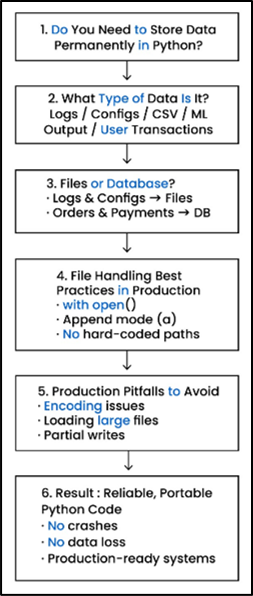
15. Production-Ready Python File Handling – End-to-End Decision Flow
This flowchart illustrates how to make correct file-handling decisions in Python, from data storage choice to production reliability.
16. Final Summary
Initially, Python file handling looks very simple, but as you work in real Python projects, then it becomes one of the most failure-prone areas if not handled with care.
In my career, I have seen many production issues like:
• broken data pipelines
They came from basic file handling mistakes like ignoring encoding, reading large files incorrectly, or relying on hard-coded paths.
So, my advice to you is to always understand file handling beyond syntax if you want to be a smart Python developer.
This guide will help you in your journey from beginner-level file handling to production-ready Python practices using real-world examples, modern tools like pathlib, and clear guidance on when to use files versus a database.
If you apply these learnings consistently, then your Python code will be reliable, portable, and future-proof.