Step-by-Step Beginner Guide for Windows 11 & 10 (2026)
1. Introduction
Python is one of the most popular programming languages in the world. It is widely used for web development, automation, artificial intelligence, machine learning, data analysis, backend development, and cloud applications.
Before you can start learning Python, building projects, or writing your first program, you need to install Python correctly on your computer.
The good news is that Python installation is simple and usually takes only a few minutes.
This beginner-friendly guide shows the complete process of downloading, installing, verifying, and running Python on a Windows computer.
Every step includes explanations and visuals so that even someone with no programming experience can follow along confidently.
By the end of this tutorial, you'll have Python installed successfully and be ready to start writing Python programs.
2. Why Should You Install Python?
Python is used by beginners, students, software developers, data analysts, AI engineers, automation testers, and cloud professionals.
Companies use Python to build websites, process data, automate repetitive tasks, create APIs, and develop artificial intelligence applications.
Learning Python is one of the best ways to start programming because its syntax is simple, readable, and beginner-friendly.
Once Python is installed on your computer, you'll be able to create applications, solve programming problems, automate tasks, and continue learning more advanced topics.
3. Before Installing Python
Before downloading Python, it's a good idea to check whether Python is already installed on your computer.
Some Windows systems may already contain a Python installation.
Step 1
Open Command Prompt.
You can do this by searching:
cmd
inside the Windows Search bar.
Step 2
Run the following command:
python --version
or
py --version
If Python is already installed, you'll see output similar to:
Python 3.14.5
If you receive an error message, don't worry. Simply continue with the installation steps below.
Check Existing Python Installation
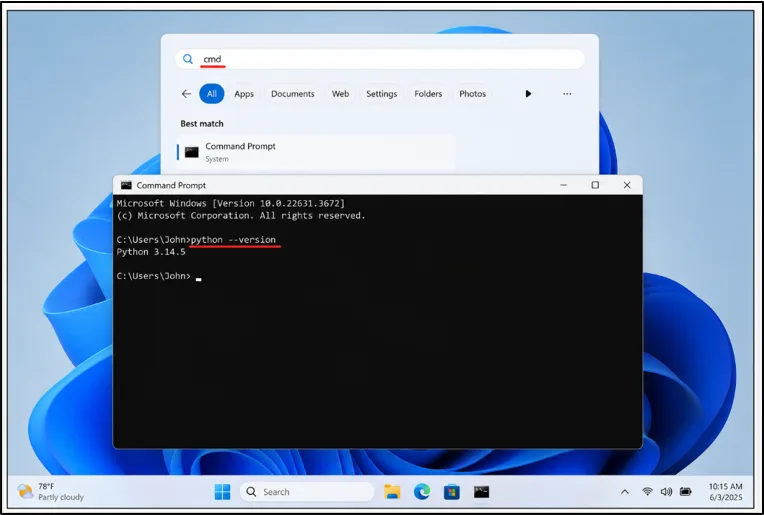
Figure: Verify whether Python is already installed using Command Prompt.
4. Step 1: Search for Python Download
Open Google or your preferred search engine.
Search for:
download python
You will see several search results.
Always choose the official Python website because it provides safe, verified, and up-to-date Python releases.
The official website address is:
python.org
Downloading Python from the official source helps avoid outdated files and potential security risks.
Search Download Python
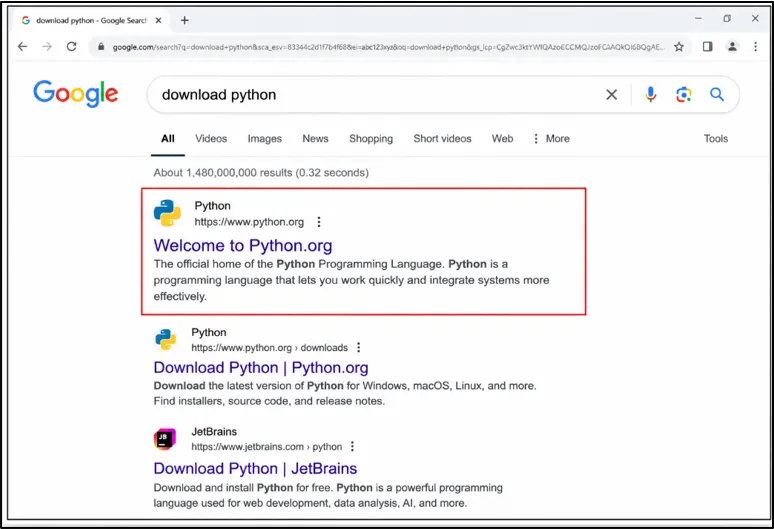 Figure:
 Search for Python download and open the official Python website.
Beginner Tip
Avoid downloading Python from third-party websites. The official Python website always provides the latest stable release.
5. Step 2: Open the Python Downloads Page
After opening the official Python website, navigate to the Downloads section.
You'll usually see a large download button on the homepage showing the latest stable Python release.
You can also manually navigate using:
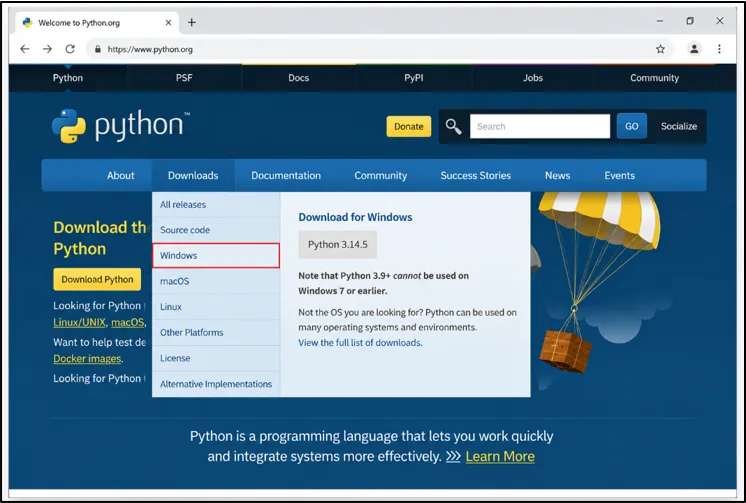
Figure: Open the Downloads menu and select Windows to download Python.
This page contains all available Python releases for Windows users.
At the time of writing, the latest stable version is:
Python 3.14.5
If a newer version becomes available, simply download the latest stable release.
Python Downloads Page
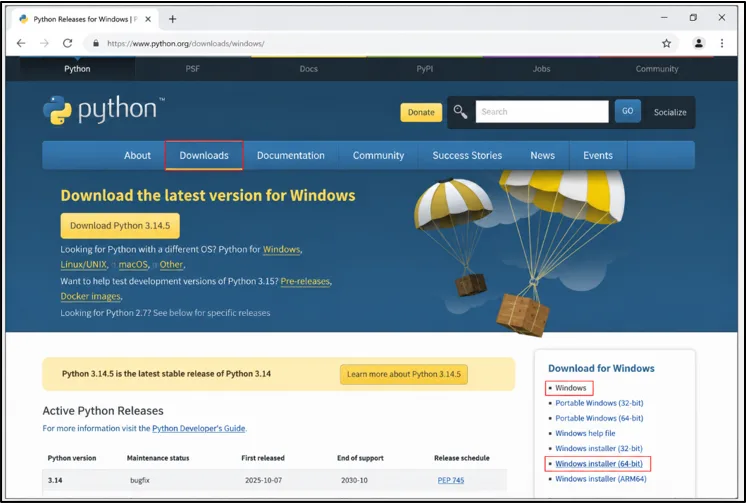
Figure: Open the Python Downloads section and select Windows.
6. Step 3: Download Python for Windows
On the Windows downloads page, locate the latest stable release.
Most users should select:
Windows Installer (64-bit)
This version works on almost all modern Windows computers.
Click the installer link to begin downloading the Python setup file.
The downloaded file will look similar to:
python-3.14.5-amd64.exe
Depending on your internet speed, the download should complete within a few seconds.
Download Python Installer
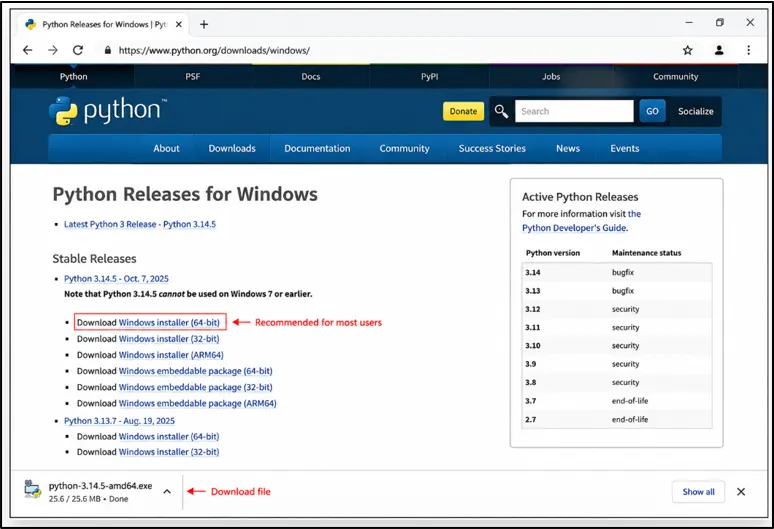
Figure: Download the latest Python Windows installer.
7. Step 4: Run the Python Installer
Once the download completes, locate the installer file inside your Downloads folder.
Double-click the installer file to launch the Python Setup window.
Before clicking Install Now, carefully review the installer options.
You'll see an option labeled:
Add Python to PATH
Make sure this checkbox is selected.
This is one of the most important steps during Python installation because it allows Windows to locate Python from any folder.
After selecting the checkbox, click:
Install Now
Python will begin installing automatically.
Run Python Installer
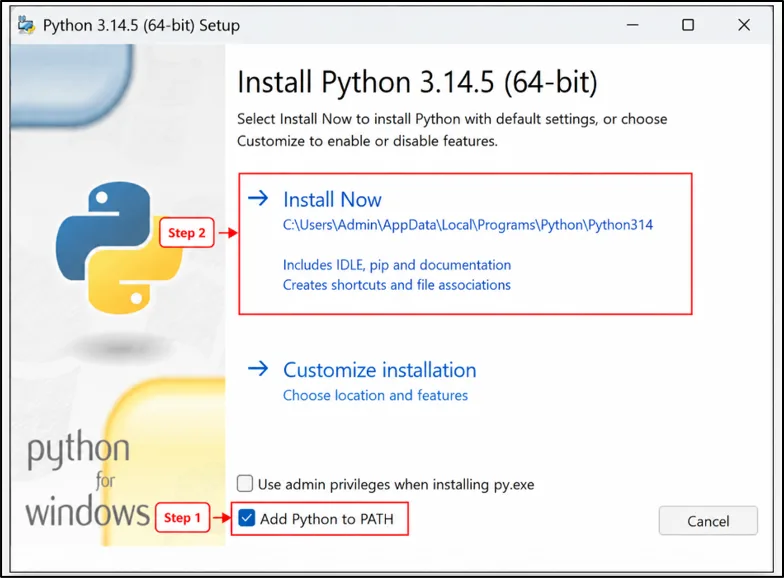
Figure: Select Add Python to PATH before clicking Install Now.
Beginner Tip
Many beginners accidentally skip the PATH option. If Python is not added to PATH, commands such as:
python --version
may not work correctly later.
8. Step 5: Wait for Python Installation to Complete
After clicking Install Now, Python will begin copying files and configuring your system automatically.
During this stage, Windows may display a progress bar showing the installation status. The process usually takes between one and two minutes on most computers.
There is no need to close the installer or restart your computer while the installation is running.
Python Installation Progress
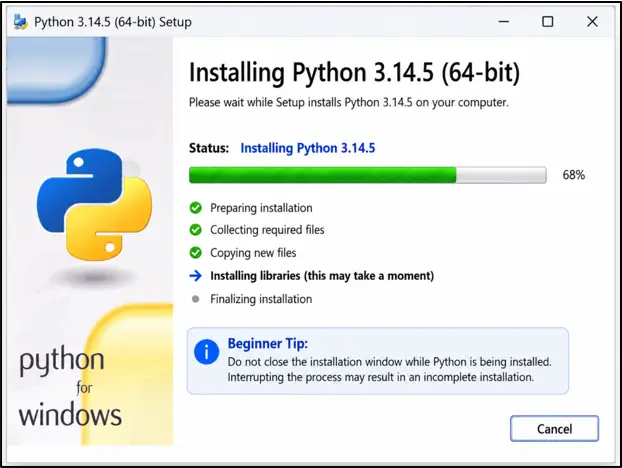
Figure: Python installer copying files and configuring the system during installation.
Beginner Tip
Do not close the installation window while Python is being installed. Interrupting the process may result in an incomplete installation.
9. Step 6: Python Installation Successful
Once the installation is complete, you'll see a success message confirming that Python has been installed successfully.
At this point, click the Close button to finish the setup process.
Your windows computer is now ready to run Python programs.
Python Installed Successfully
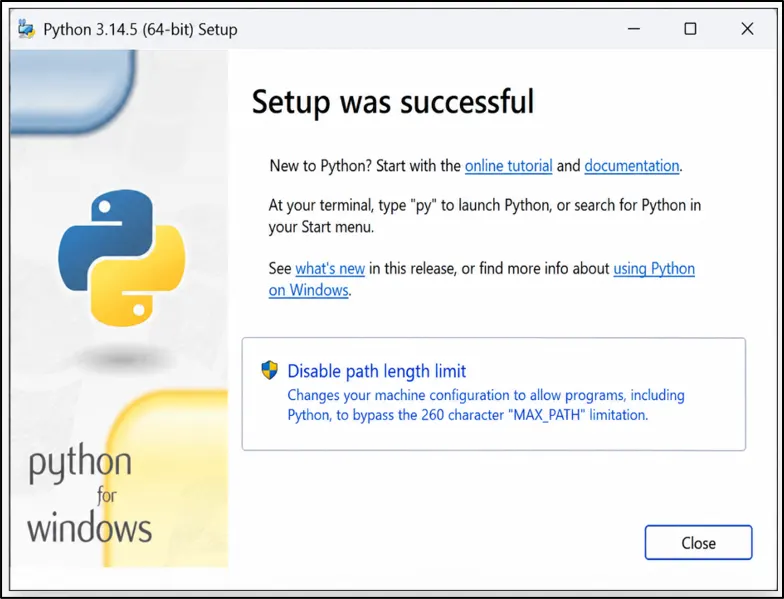
Figure: Python installation completed successfully on Windows.
10. Step 7: Verify Python Installation
After installation, it's important to verify that Python is working correctly.
Open Command Prompt and run:
python --version
If Python was installed successfully, you'll see output similar to:
Python 3.14.5
This confirms that Python has been installed and Windows can locate it correctly.
Verify Python Installation
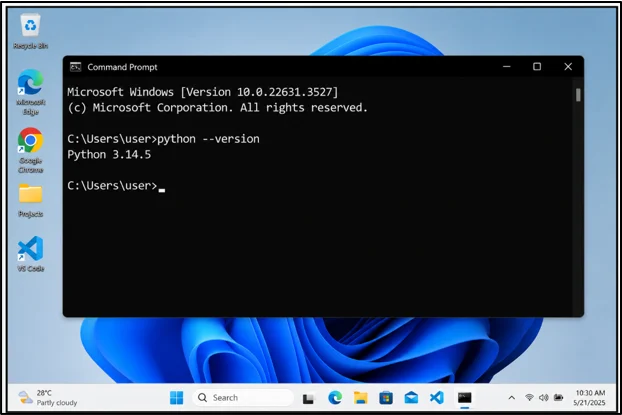
Figure: Verifying Python installation using the python --version command.
11. Step 8: Verify pip Installation
Python automatically installs pip, which is Python's package manager.
pip allows you to install external Python libraries and tools that are used in real-world development.
Run the following command:
pip --version
You should see output similar to:
pip 25.x
This confirms that pip is installed and ready to use.
Verify pip Installation
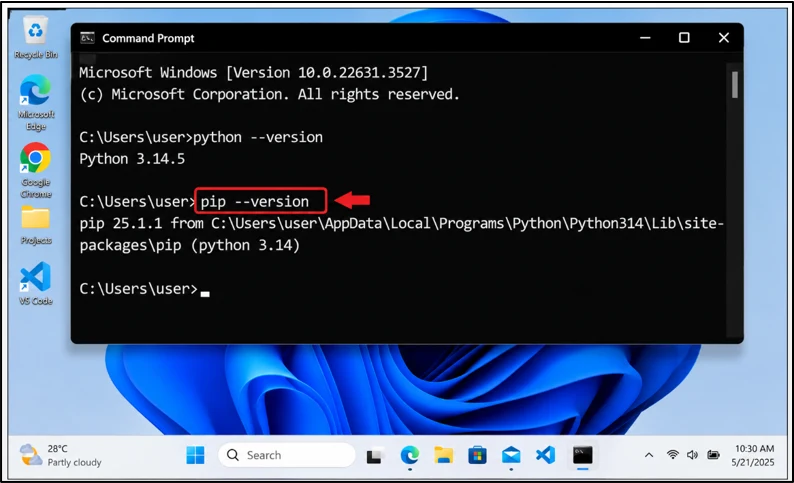
Figure: Checking whether pip was installed successfully with Python.
12. Step 9: Run Your First Python Program
Now that Python is installed, let's run your first Python program.
Create a file named:
hello.py
Add the following code:
print("Hello World")
Save the file.
Open Command Prompt, navigate to the file location, and run:
python hello.py
Output:
Hello World
Congratulations! You have successfully installed Python and executed your first Python program.Ready to continue learning? Start with
Variables in Python to understand how Python stores and manages data.
First Python Program
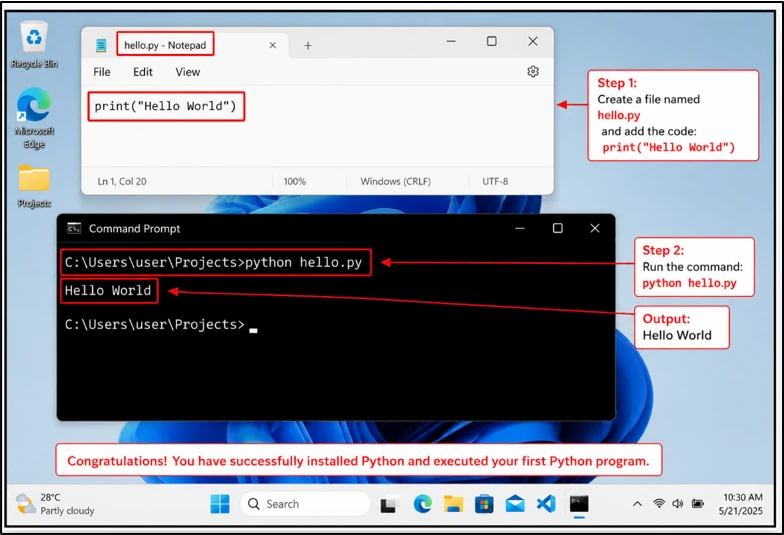
Figure: Creating and running a Hello World Python program on Windows.
13. Common Python Installation Problems and Solutions
Installing Python is usually straightforward, but beginners occasionally encounter a few common issues after installation. The good news is that most Python installation problems can be fixed in just a few minutes.
If Python commands are not working as expected, don't panic. The following solutions cover some of the most frequently searched Python installation errors and explain how to fix them step by step.
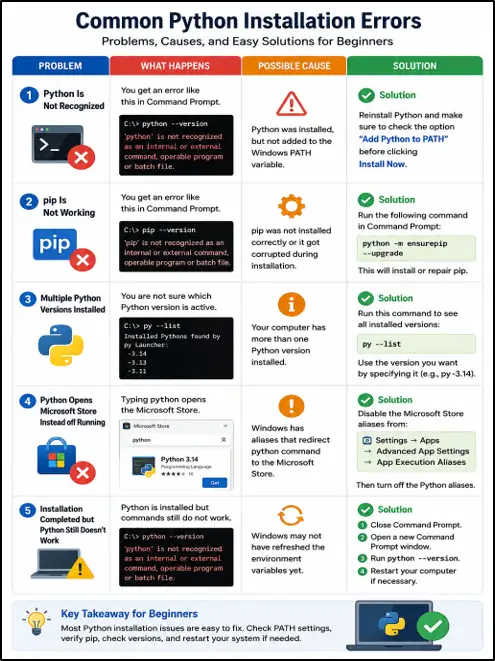 Figure:
 Common Python installation errors and troubleshooting solutions for beginners on Windows.
I. Python Is Not Recognized
One of the most common beginner errors appears when running the following command:
python --version
Error:
'python' is not recognized as an internal or external command
Why Does This Happen?
This error usually means Windows cannot locate the Python installation on your computer.
In most cases, Python was installed successfully, but the Add Python to PATH option was not selected during installation.
Solution
Reinstall Python and make sure the following checkbox is enabled:
Add Python to PATH
Once Python is added to PATH, Windows will be able to find Python from any Command Prompt window.
Beginner Explanation
Think of PATH as a directory map used by Windows. If Python's location is missing from that map, Windows doesn't know where Python is installed and cannot run Python commands.
II. pip Is Not Working
After installing Python, some beginners discover that the following command does not work:
pip --version
This can happen if pip was not installed correctly or if its configuration became corrupted.
Solution
Run the following command:
python -m ensurepip --upgrade
This command checks whether pip is installed and repairs or upgrades it if necessary.
Beginner Explanation
pip is Python's package manager. It allows you to install useful libraries such as Requests, Pandas, NumPy, Flask, and many other tools used in real-world Python development.
Without pip, installing external Python packages becomes difficult, so it's important to verify that pip works correctly.
III. Multiple Python Versions Installed
As you continue learning Python, you may install newer versions while older versions remain on your computer.
This can sometimes create confusion because different commands may point to different Python versions.
Solution
Run:
py --list
Example Output:
Installed Pythons found by py Launcher:
-3.14
-3.13
-3.11
This command displays all Python versions currently installed on your system.
Beginner Explanation
Having multiple Python versions is not necessarily a problem. Many developers keep several versions for testing, learning, or maintaining older projects.
The important thing is knowing which version is being used when you run your programs.
IV. Python Opens Microsoft Store Instead of Running
Some Windows systems redirect Python commands to the Microsoft Store.
For example:
python
may open the Microsoft Store instead of starting Python.
Solution
Disable the Microsoft Store Python aliases from:
Settings
● Apps
● Advanced App Settings
● App Execution Aliases
Then turn off the Python aliases.
Beginner Explanation
Windows includes shortcuts that sometimes override your actual Python installation. Disabling these shortcuts allows Windows to use the Python version you installed directly from the official website.
V. Installation Completed but Python Still Doesn't Work
Occasionally, Python installs successfully but commands still fail to run.
This usually happens when Windows has not refreshed its environment variables yet.
Solution
Try these steps:
1. Close Command Prompt.
2. Open a new Command Prompt window.
3. Run:
python --version
4. Restart the computer if necessary.
Beginner Explanation
Sometimes Windows needs to reload system settings before newly installed applications become available everywhere.
Key Takeaway
Most Python installation errors are easy to fix and do not require advanced technical knowledge.
If Python commands are not working correctly, start by checking PATH settings, verifying pip installation, and confirming which Python version is active. These simple troubleshooting steps solve the majority of Python installation issues encountered by beginners.
14. Frequently Asked Questions (FAQ)
I. Which Python Version Should Beginners Install?
Beginners should install the latest stable Python version available on the official Python website because it includes the newest features, performance improvements, and security updates.
At the time of writing, Python 3.14.5 is the latest stable release, but always check the official website for newer versions.
II. Is Python Free?
Yes. Python is completely free and open source, making it one of the most popular programming languages for beginners and professional developers.
You can download, install, and use Python without paying any licensing fees.
III. Does Python Work on Windows 10 and Windows 11?
Yes. Python supports both Windows 10 and Windows 11 and can be installed using the same process shown in this guide.
Most Python tools, libraries, and development environments work identically on both operating systems.
IV. Do I Need an Internet Connection After Installing Python?
No. Once Python is installed, you can write and run Python programs without an internet connection.
Internet access is only needed when downloading Python, installing packages, or working with online APIs and services.
V. Should I Install the 32-bit or 64-bit Version of Python?
Most modern computers should install the 64-bit version because it offers better performance and supports larger applications.
The 32-bit version is mainly used on older systems that do not support 64-bit software.
VI. How Do I Check If Python Is Installed Correctly?
Open Command Prompt and run:
python --version
If Python displays a version number, the installation was completed successfully and Python is ready to use.
VII. Why Is Python Not Recognized in Command Prompt?
This usually happens when Python was not added to the Windows PATH variable during installation.
Reinstall Python and make sure the Add Python to PATH option is selected before clicking Install Now.
VIII. What Is pip in Python?
pip is Python's package manager that allows you to install external libraries and frameworks used in real-world development.
Developers use pip to install tools such as Requests, Pandas, NumPy, Flask, Django, and many others.
IX. Can I Install Multiple Python Versions on the Same Computer?
Yes. Windows allows multiple Python versions to exist on the same system without conflicts.
Many developers keep different versions for testing projects, learning new features, or maintaining older applications.
X. What Should I Learn After Installing Python?
Building a strong foundation in these topics makes learning functions, APIs, automation, and backend development much easier later.
Following a structured learning path helps beginners avoid confusion and build practical programming skills faster.
A simple restart often resolves this issue.
15. Final Thoughts
Installing Python is more than just setting up software on your computer. It is the first step toward learning one of the most widely used programming languages in the world.
With Python successfully installed, you now have everything needed to start writing code, building projects, automating tasks, analyzing data, and exploring fields such as web development, artificial intelligence, machine learning, and backend development.
Don't worry about learning everything at once. Every Python developer started by writing simple programs, making mistakes, and gradually improving through practice. Consistent learning and hands-on coding matter far more than trying to memorize every concept.
As your next step, focus on learning Python Variables, Data Types, Strings, Lists, Conditional Statements, and Loops. These foundational topics will help you understand how Python programs work and prepare you for more advanced concepts later.
A few months from now, the Python installation you completed today could be the starting point for your first project, your first automation script, your first freelance opportunity, or even the foundation for larger applications and real-world projects in the future. The important thing is to keep learning, keep building, and keep experimenting with code.
Welcome to your Python journey. Now it's time to write your next line of code.
