
Step-by-Step Git Bash Installation Guide for Beginners (2026)
1. Introduction
If you're starting your journey in Python, web development, GitHub, cloud computing, or software engineering, you'll eventually need a tool that allows you to interact with projects, repositories, and development tools from a terminal.
If you're new to programming, you can first read our How to Install Python on Windows guide to set up your Python development environment and start writing your first programs.
One of the first tools many developers install on Windows is Git Bash. It is commonly used in programming tutorials, coding courses, GitHub projects, and professional development environments.
For beginners, Git Bash may seem unfamiliar at first. However, installing and using it is much easier than most people expect. Once installed, you'll be able to follow modern development tutorials more easily and work with the same tools used by developers around the world.
In this step-by-step guide, you'll learn how to download, install, verify, and launch Git Bash on Windows. The tutorial includes visuals and beginner-friendly explanations so you can complete the installation with confidence.
2. What Is Git Bash?
Many beginners wonder why developers install Git Bash when Windows already includes Command Prompt.
The reason is simple. While Command Prompt is designed primarily for Windows administration, Git Bash is designed for software development. It includes Git and provides access to many commands that developers commonly use when working with source code, GitHub repositories, cloud platforms, and Linux-based servers.
As you learn Python, GitHub, DevOps, cloud computing, or web development, you'll notice that many tutorials use terminal commands that work naturally in Git Bash. This makes it easier to follow learning resources and work in an environment that is similar to the Linux systems used by many companies.
Think of it this way:
- Command Prompt helps you interact with Windows.
- Git Bash helps you work like a software developer.
For most beginners, Git Bash becomes the preferred tool because it combines Git, terminal commands, and development workflows in a single application.
This is one of the reasons Git Bash is widely used by developers, open-source contributors, cloud engineers, and DevOps professionals around the world.
3. Why Should Beginners Install Git Bash?
Many beginners start learning programming using graphical tools and menus. While that approach works initially, most modern development workflows eventually require working with a terminal.
Git Bash helps bridge that gap by giving Windows users access to the same type of command-line environment used by developers around the world. As you follow Python tutorials, work with GitHub repositories, or learn cloud and DevOps concepts, you'll frequently encounter terminal commands that are commonly executed in Git Bash.
If you're unsure what to learn after installation, follow our Python Developer Roadmap for Beginners to understand the complete learning path from basics to advanced topics.
Installing Git Bash early helps you become comfortable with development tools, version control, and project management workflows. It also makes it easier to follow programming tutorials, contribute to GitHub projects, and build skills that are widely used in professional software development environments.
For many beginners, Git Bash becomes one of the first tools that transforms a Windows computer into a practical software development workspace.
4. Step 1: Open the Git Download Website
Open your preferred web browser and visit the official Git website:
https://git-scm.com
This is the safest and most reliable source for downloading Git Bash. The website always provides the latest stable Git release along with installation files for Windows, macOS, and Linux.
At the time of writing, Git 2.54.0 is the latest stable release. If a newer stable version is available, download the latest version shown on the official Git website.
Open Git Download Website
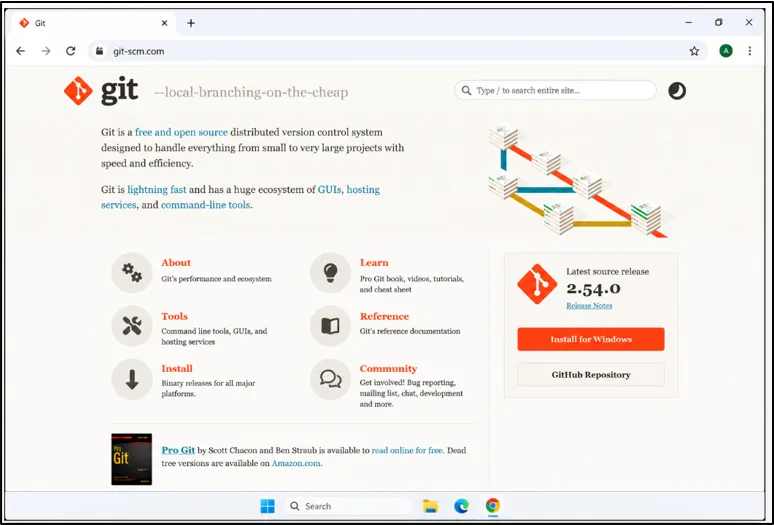
Figure: Open the official Git website to download the latest Git version.
5. Step 2: Download Git for Windows
Once you click the Install for Windows button on the Git homepage, the Git installation page opens automatically.
On the next screen, the Install section appears with the Windows tab selected by default. This page displays the latest Git for Windows release along with download options for different Windows architectures.
To download Git Bash, click the highlighted download link:
Git for Windows/x64 Setup
For most beginners, the x64 Setup version is the correct choice because it supports modern 64-bit Windows computers and includes Git Bash as part of the installation package.
The installer file will start downloading automatically and will be saved in your Downloads folder.
Beginner Tip
If you're unsure which installer to choose, download the latest Git for Windows/x64 Setup version. This is the recommended option for most Windows 10 and Windows 11 users.
Download Git for Windows
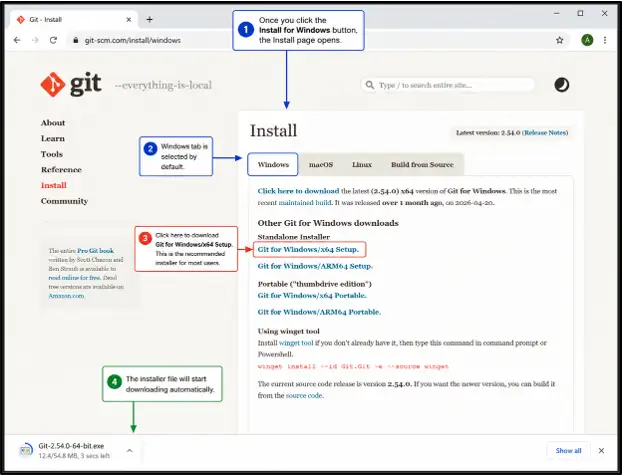
Figure: Download the latest Git for Windows x64 Setup installer from the official Git installation page.
6. Step 3: Start the Git Installation
After the Git installer file finishes downloading, open your Downloads folder and double-click the setup file.
The Git Setup window will open and display the GNU General Public License (GPL) agreement screen. This screen contains the license terms under which Git is distributed.
For most beginners, there is no need to change any settings on this page. Simply click:
Install
to begin the installation process.
The installer will automatically copy the required files and configure Git Bash on your computer.
Beginner Explanation
The GNU General Public License is the open-source license used by Git. It allows developers to use, modify, and distribute Git freely.
You do not need to read the entire license to continue the installation. Simply click Install and proceed to the next step.
Start Git Installation
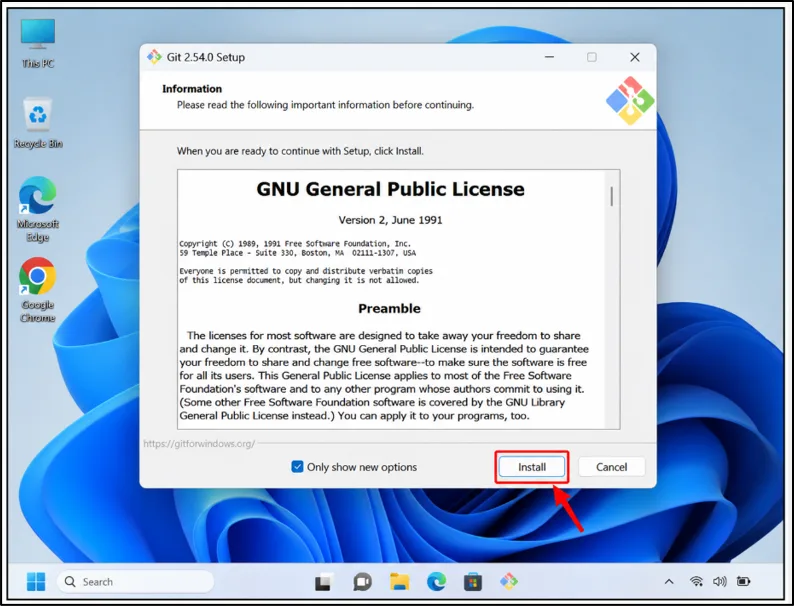
Figure: Click the Install button to begin installing Git Bash on Windows.
7. Step 4: Wait for the Installation to Complete
After clicking the Install button, Git Setup will begin copying files and configuring Git Bash on your computer.
During this stage, you'll see an installation progress window showing files being extracted and installed. The progress bar will move automatically as the setup process continues.
For most systems, the installation takes less than a minute. There is no need to click anything while Git is being installed.
Beginner Explanation
Git is now being added to your Windows computer along with Git Bash and other required components. Simply wait for the installation to finish and avoid closing the setup window during this process.
Git Installation in Progress
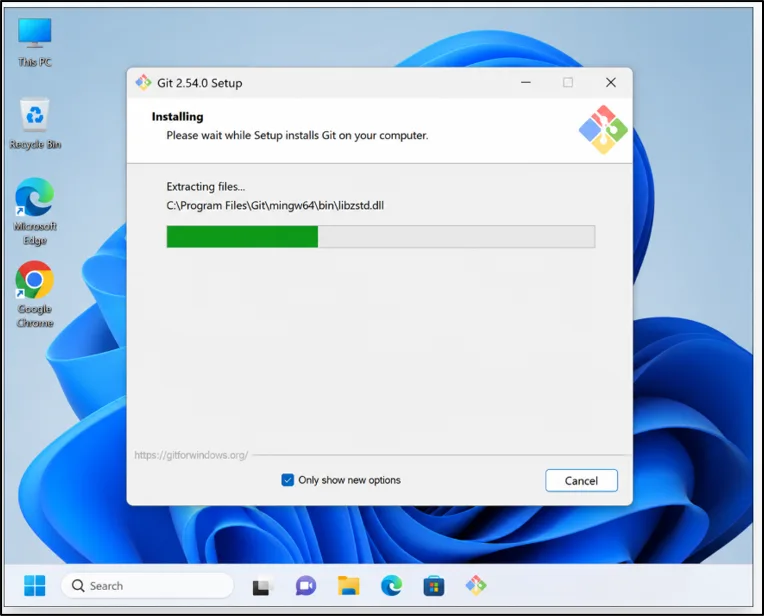
Figure: Git Setup is installing Git Bash and required files on Windows.
Important Point:
The installation speed may vary depending on your computer's performance. Wait until the progress bar reaches 100% and the installation completion screen appears.
8. Step 5: Complete the Git Installation
Once the installation process finishes, you'll see the Completing the Git Setup Wizard screen.
This screen confirms that Git and Git Bash have been installed successfully on your Windows computer.
Before closing the installer, select:
Launch Git Bash
if you want Git Bash to open automatically after installation.
Then click:
Finish
to exit the setup wizard.
Your Git Bash installation is now complete and ready to use.
Beginner Explanation
This is the final installation screen. Git has already been installed on your computer, and no additional setup is required.
If you select Launch Git Bash, the Git Bash terminal will open immediately after you click Finish, allowing you to verify that the installation was successful.
Git Installation Complete
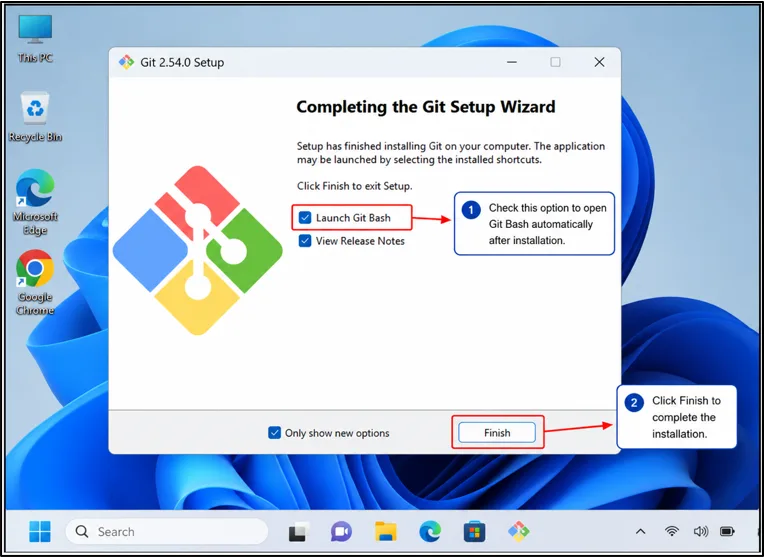
Figure: Git Setup Wizard confirming successful Git Bash installation on Windows.
Important Point:
If you're installing Git Bash for the first time, enable Launch Git Bash before clicking Finish. This allows you to verify the installation immediately without searching for Git Bash manually.
9. Step 6: Git Bash Opens Successfully
After clicking Finish, Git Bash may launch automatically if the Launch Git Bash option was selected during installation.
A Git Bash terminal window will open on your screen. You may also see the Git Release Notes page open in your web browser. This page contains information about the latest Git updates and can be safely closed.
The appearance of the Git Bash terminal confirms that Git and Git Bash were installed successfully on your windows computer.
Beginner Explanation
The black terminal window is Git Bash. This is the tool you'll use to run Git commands, work with GitHub repositories, and follow development tutorials that use terminal commands.
Don't worry if the terminal looks unfamiliar. For now, simply confirm that the Git Bash window opened successfully.
Git Bash Opens Successfully
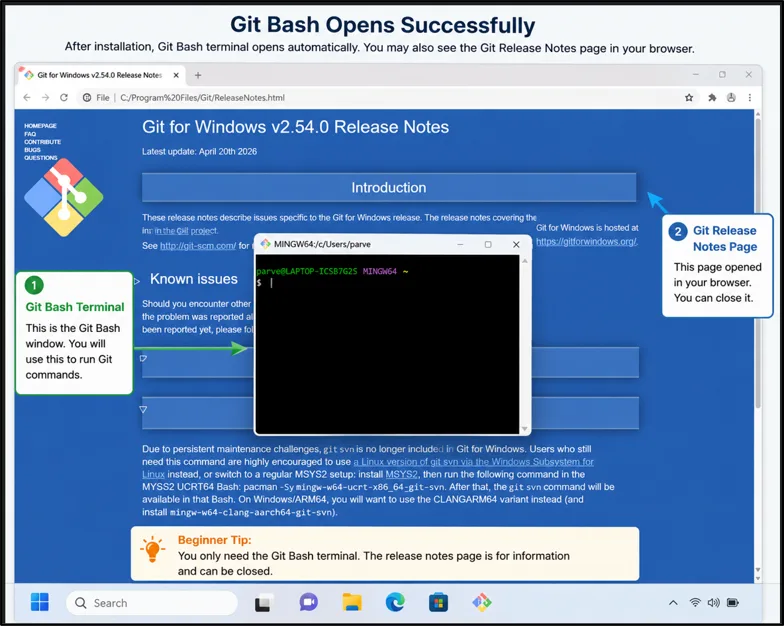
Figure: Git Bash terminal opens automatically after a successful installation.
If the Git Release Notes page opens automatically, you can close it. The Git Bash terminal is the window you'll use for learning Git and running commands.
10. Step 7: Verify Git Bash Installation
Verify Git Installation
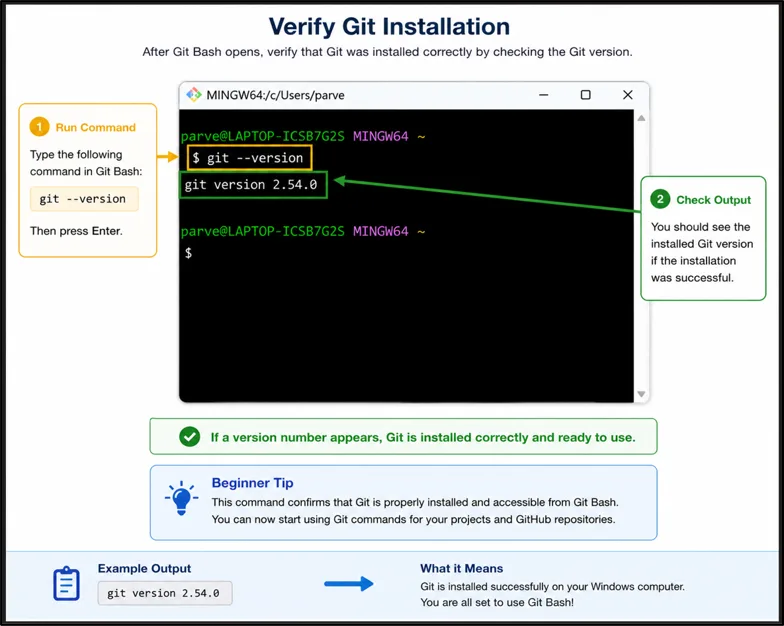
Figure: Verify Git Bash installation using the git --version command.
11. Common Git Bash Installation Problems and Solutions
I. Git Is Not Recognized as an Internal or External Command
II. Git Bash Opens and Closes Immediately
- Close all terminal windows
- Disable antivirus temporarily if required
- Run the installer as Administrator
III. Git Bash Does Not Open at All
IV. Wrong Git Version Is Displayed
If you've installed Git previously, your computer may contain multiple Git versions.
As a result, Git Bash might display an older version instead of the newly installed one.
Solution
Run:
where git
This command shows all Git executables available on your computer.
Beginner Explanation
Many developers install different development tools over time. This command helps identify which Git installation Windows is currently using.
V. Git Bash Opens Microsoft Store Instead of Running Git
This is one of the most confusing Windows issues for beginners.
Instead of opening Git Bash or running Git commands, Windows redirects you to the Microsoft Store.
Solution
Open:
Settings
- Apps
- Advanced App Settings
- App Execution Aliases
Turn off the Python and Git-related aliases if they are interfering with your installation.
Then restart Git Bash.
Beginner Explanation
Windows sometimes creates shortcuts that override the actual software installed on your computer. Disabling these aliases allows Windows to use the real Git installation.
VI. Permission Denied Errors in Git Bash
You may see errors such as:
- Permission denied
- Access is denied
when creating files or working inside protected folders.
Solution
Open Git Bash as Administrator or work inside folders that belong to your user account, such as:
- Documents
- Desktop
- Projects
Beginner Explanation
Certain Windows folders require elevated permissions. Using your own project folders avoids most permission-related issues.
VII. Internet or Firewall Blocks Git Operations
Sometimes Git installs correctly, but commands such as cloning repositories fail because of firewall, VPN, or corporate network restrictions.
Solution
Check your internet connection and temporarily disable VPN software if necessary.
You can also test Git connectivity using:
git --version
and later GitHub-related commands.
Beginner Explanation
Git itself may be working perfectly. The issue is often caused by network restrictions rather than the installation.
12. Frequently Asked Questions (FAQ)
I. Do I Need Git Bash to Learn Git and GitHub?
No. Git itself can be used through several tools, but Git Bash is one of the easiest ways for beginners to learn Git commands and follow GitHub tutorials. Most online courses, documentation, and real-world examples use Git Bash or a similar terminal environment.
II. Is Git Bash Free to Download and Use?
Yes. Git Bash is completely free and open source. Anyone can download, install, and use it on Windows without purchasing a license or subscription.
III. Can I Install Git Bash on Windows 10 and Windows 11?
Yes. Git Bash works on both Windows 10 and Windows 11. The installation process is nearly identical, making it easy for beginners to follow the same setup steps regardless of their Windows version.
IV. What Is the Difference Between Git, Git Bash, and GitHub?
Git is a version control system used to track changes in source code. Git Bash is the terminal application that allows Windows users to run Git commands, while GitHub is a cloud platform used to store and collaborate on Git repositories.
V. Why Do Developers Use Git Bash Instead of Command Prompt?
Git Bash includes Git and provides a Linux-style command-line environment on Windows. This makes it easier to follow development tutorials, work with GitHub repositories, and use commands that are commonly found in Linux servers and cloud environments.
VI. How Do I Check Whether Git Bash Is Installed Correctly?
Open Git Bash and run:
git --version
If Git displays a version number, the installation was successful and Git Bash is ready to use.
VII. Can I Use Git Bash for Python Development?
Yes. Many Python developers use Git Bash to manage projects, work with GitHub repositories, create virtual environments, and run development-related commands. It is commonly used alongside Python on Windows.
You can also learn how to create isolated Python environments using our Python Virtual Environments Guide , which is commonly used together with Git Bash.
VIII. Is Git Bash Required for GitHub?
No. GitHub can be used through a web browser, but Git Bash makes it much easier to clone repositories, push code, create branches, and manage projects using Git commands.
IX. What Are the Most Common Git Bash Commands for Beginners?
Some of the first commands beginners learn are:
git --version
git clone
git status
git add
git commit
git push
These commands are used daily by developers to manage source code and collaborate on projects.
X. Should Beginners Learn Git Bash or Command Prompt First?
If your goal is software development, GitHub, Python, web development, cloud computing, or DevOps, learning Git Bash first is often more useful because it introduces Git commands and Linux-style terminal workflows used in professional development environments.
XI. Is Git Bash Safe to Install?
Yes. Git Bash is developed and distributed through the official Git project and is used by millions of developers worldwide. To stay safe, always download Git from the official Git website rather than third-party download portals.
13. Final Thoughts
Installing Git Bash is more than just adding another application to your computer. It gives you access to the same command-line workflow used by developers to manage projects, collaborate through GitHub, and work with modern development tools.
At this point, your setup is complete and you're ready to start exploring Git commands. Begin with simple tasks such as checking the Git version, creating folders, navigating directories, and cloning public GitHub repositories. These small exercises will help you build confidence and become comfortable working in a terminal environment.
The next time you follow a GitHub tutorial, clone a repository, or contribute to an open-source project, Git Bash will likely be one of the first tools you use. Becoming comfortable with terminal commands now can save countless hours later and make it easier to learn Git, GitHub, Python development, cloud technologies, and DevOps workflows.